
The starting point
A new router or Wi-Fi name can leave smart devices looking for the old network. Start with a device inventory and each manufacturer’s reconnection instructions. Avoid factory-resetting everything at once: resets can affect settings, household access or stored recordings.
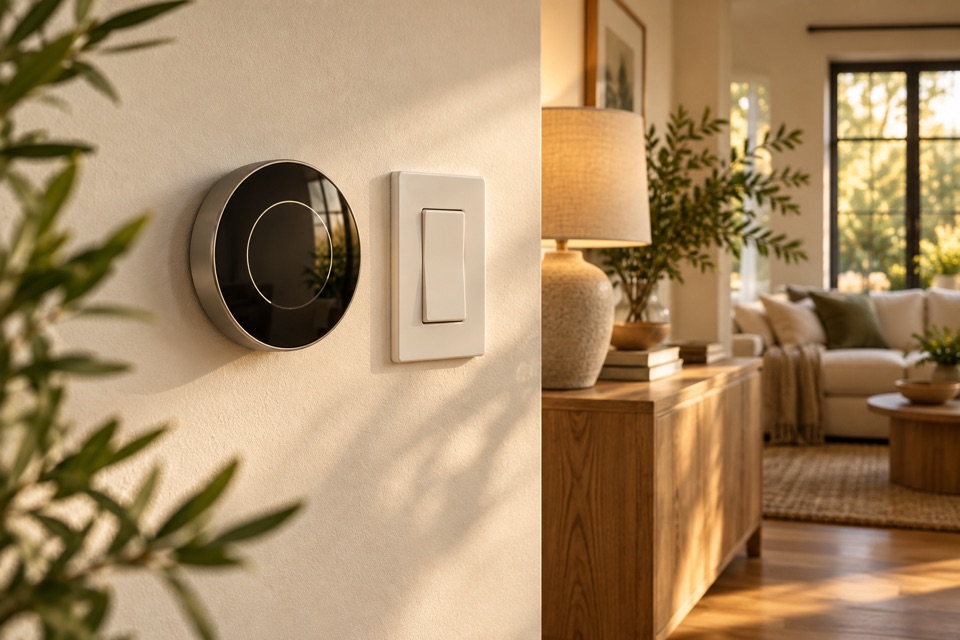
Make a small inventory before changing settings
List what is offline, which app it uses and whether it connects directly to Wi-Fi or through a separate hub. Include cameras, doorbells, switches and thermostats by exact model. Note what still works physically and whether the phone itself can use the new network. This separates a whole-network problem from one accessory that needs a different recovery process.
Keep recovery tied to the model
Google’s camera and doorbell guidance shows why the product and setup app matter: network changes can require different steps, and some reset flows require saving important clips first. Use the official instructions for each model rather than applying one reset procedure to every device. Reusing a network name may help some products, but do not weaken the router’s security settings merely to make an old accessory reconnect.
Protect ownership and useful settings
Have the account owner available and use supported household-sharing tools where needed. Do not email passwords to request assistance. Keep purchase details, device labels and recovery methods available privately. Before any reset, consider recordings, routines, room assignments and access by other family members. Decide what should be preserved and what genuinely needs to be rebuilt.
Reconnect one meaningful routine first
A useful first milestone might be the doorbell ringing indoors or the kitchen light working from both the wall and the app. Test the routine before moving to the next group of devices. Then check shared access, notifications and schedules. A device appearing online is only one part of success; it still needs to work the way the household expects.
Know what the visit needs to solve
Tell Maz whether this followed an internet-provider change, a new router, a new password or moving home. Include the router and device models plus your Richmond-area ZIP code. FIXABL can discuss connected-home setup and the scope of assistance. An internet-service outage, account lockout or manufacturer service problem may still need the relevant provider to resolve it.
Questions before you begin
Should I reset every device?
No. First identify the affected devices and follow their current recovery instructions. A factory reset may remove settings or require reconfiguration and should not be the default first step.
Should I send Maz my Wi-Fi password?
Do not include passwords in an inquiry. Share model names and symptoms; arrange any necessary access through an appropriate setup process.
Bring these to the conversation
- Old and new router model names
- Offline device and app list
- Which physical functions still work
- Important settings or recordings to preserve
- Account owner available through supported access
Useful sources
Google Nest: changing a camera or doorbell Wi-Fi networkSource information checked October 28, 2026. Use the official source for current requirements and product details.
Planning information from FIXABL for homeowners in Richmond, Midlothian and Chesterfield County. The approach, qualifications and approvals needed for your home depend on the specific work and an assessment.